Add Existing Activities with OneDrive
Add existing files from OneDrive to a Content module in your course.
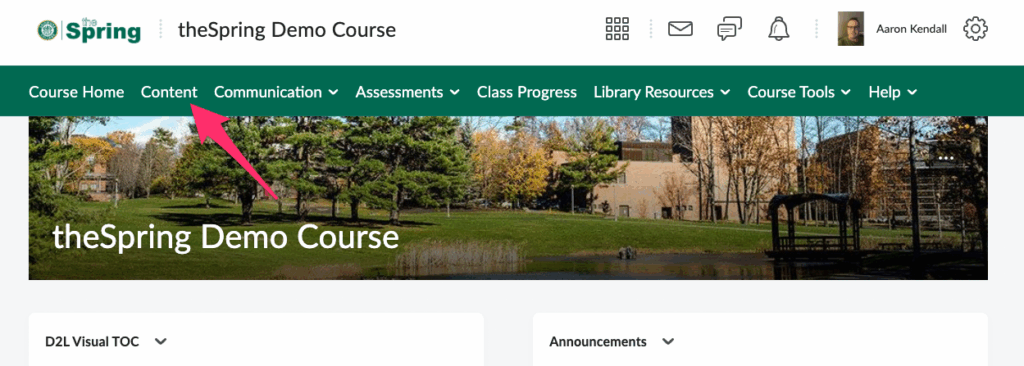
1. From your course homepage, navigate to Content.
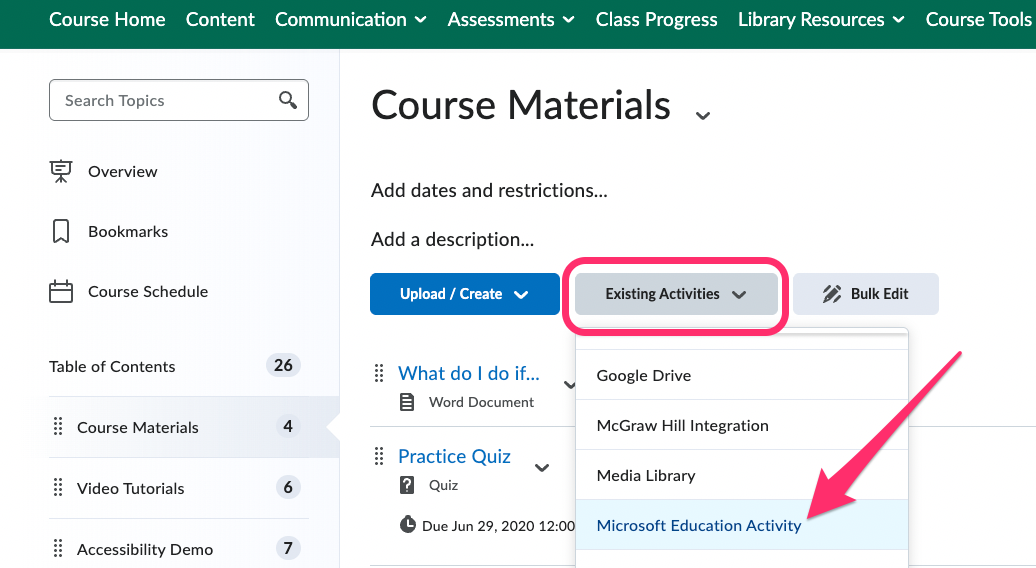
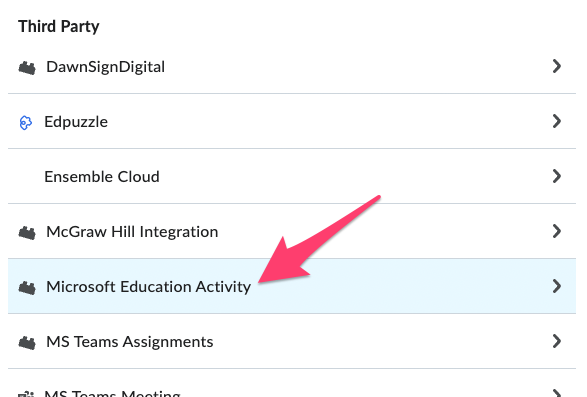
2. Open a content module and click Existing Activities > Microsoft Education Activity.
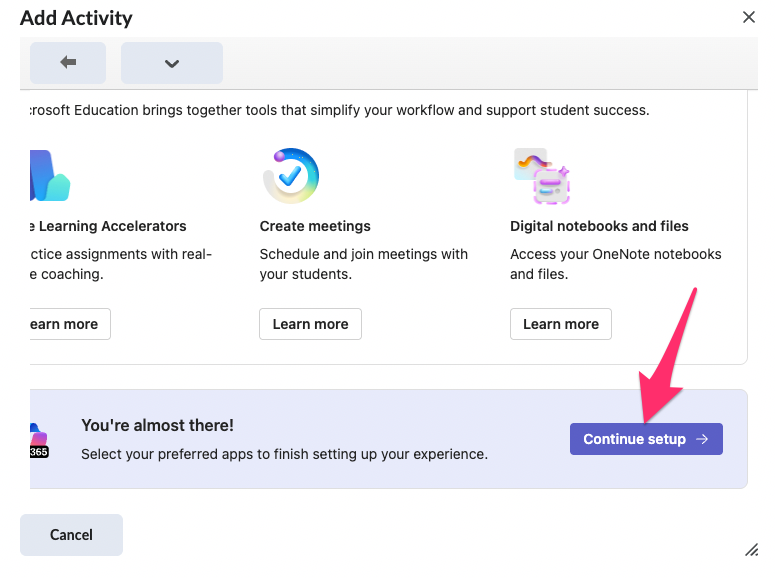
3. The first time you link to your MS O365 account from a course, you will be prompted to set up the integration. Click on “Continue setup”.
4. Select the OneDrive app and then click on “Done”.
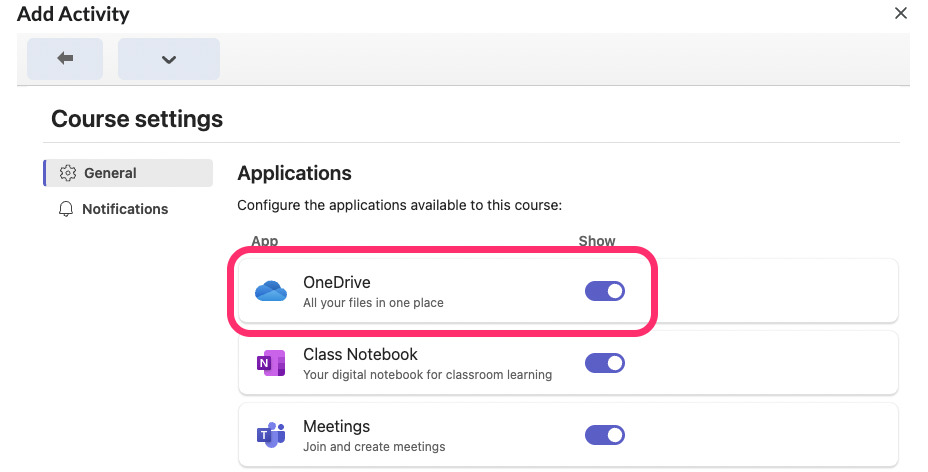
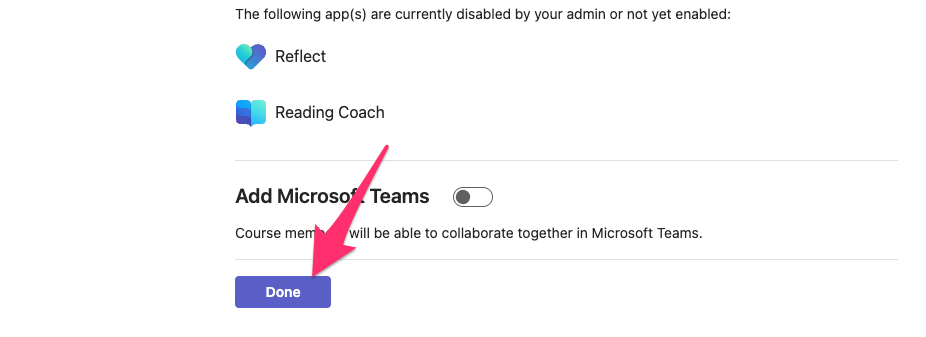
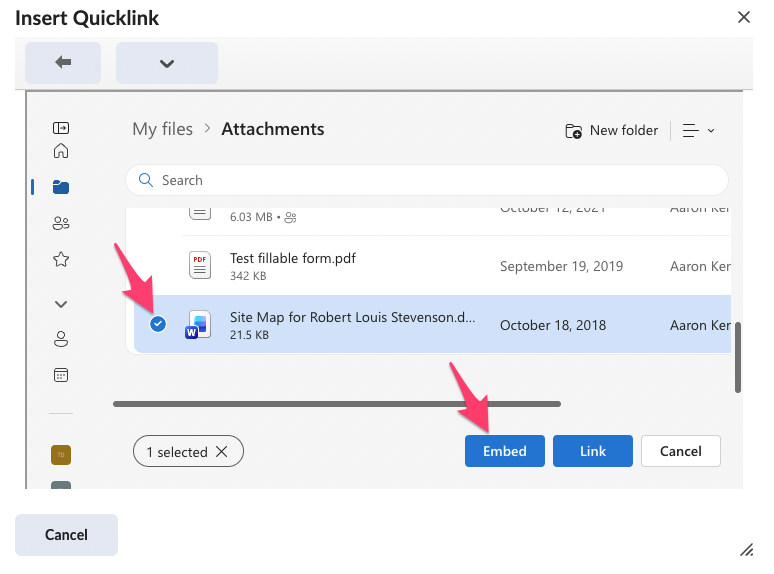
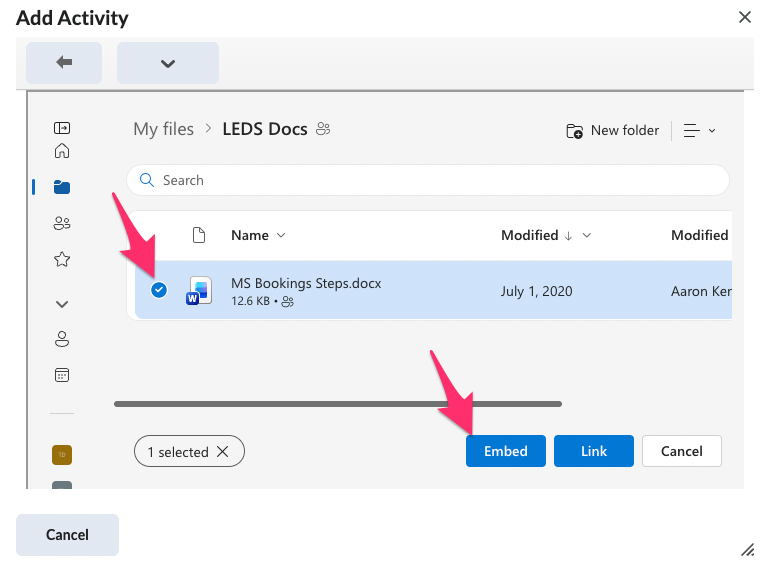
5. Navigate to the file you want to add in OneDrive and select it. Then click “Embed”.
Add existing files from OneDrive to Assignments to include additional files.
1. From your course homepage, navigate to Assessments > Assignments.

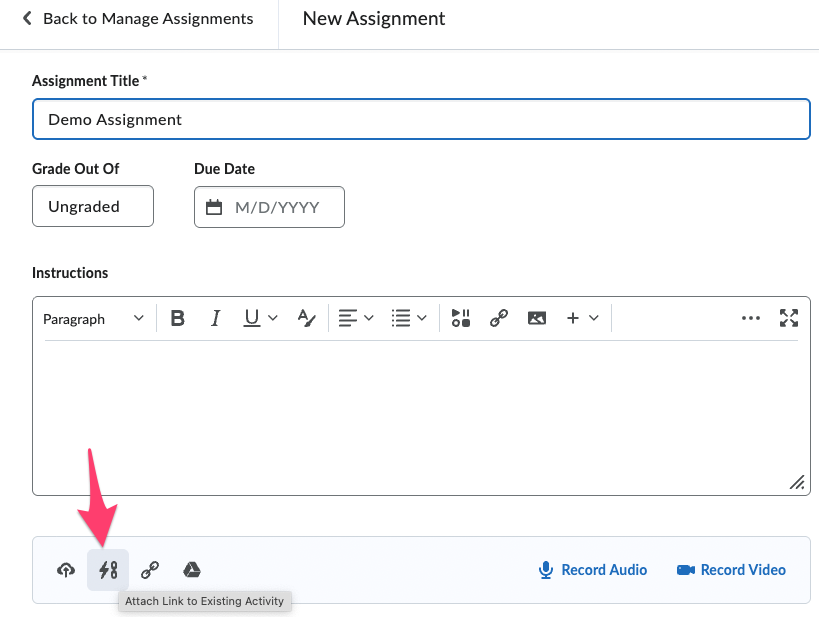
2. Create a new assignment or edit an existing one. Below the HTML editor click on the “Attach Link to Existing Activity” icon.
3. In the pop-up window, scroll down to Third Party and select Microsoft Education Activity.
4. Select the file you want added and then click “Embed”.